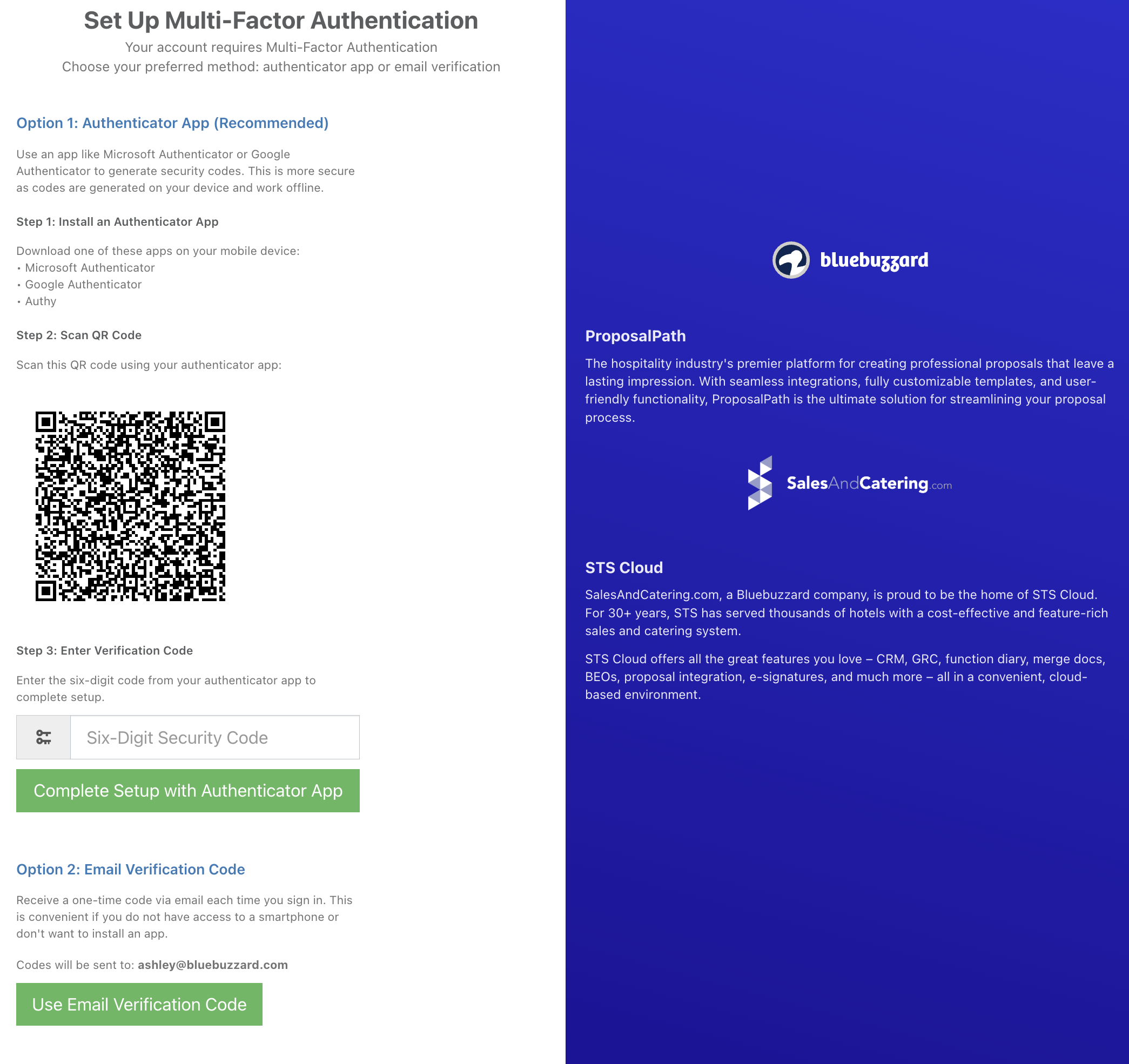
Multi-Factor Authentication

MULTI-FACTOR AUTHENTICATION is now mandatory in order to provide enhanced security
- There are 2 options for MFA Authentication:
- An Authenticator App
- Email Verification Code
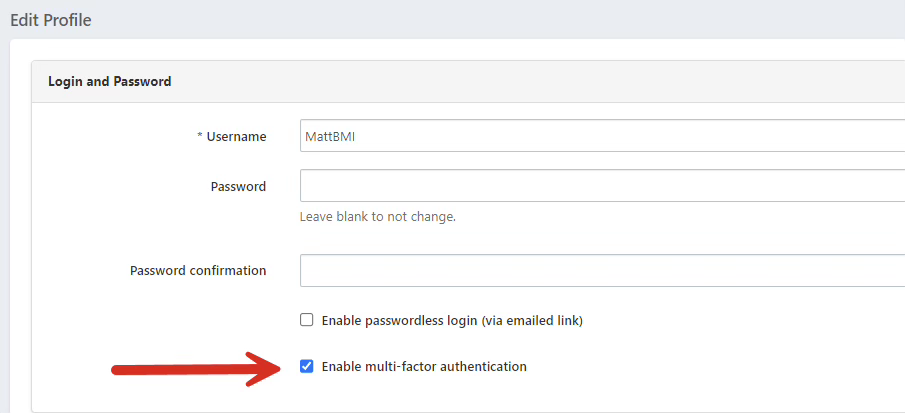
If you would like to use option 2, skip this step.- Go into your Personal User Settings and check the box for 'Enable multi-factor authentication:'
- Check the box for Enable multi-factor authentication.
- Scroll down and click Save User Account.
- It will log you out of the system and show you the screen below- follow the directions on the screen: