Sertifi Connectivity - Set Up
As a convenience, we offer connectivity to Sertifi for sending and signing contracts. Here is how to start the process of linking your Sertifi accounts to your STS Cloud system.
To activate integration with Sertifi, please first reach out to our support team at support@bluebuzzard.com to have this feature enabled within your property's STS Cloud account. During this process, our team will:
Ensure you have an existing Sertifi account with e-Signatures enabled, if you would like to send contracts for signature using this integration.
Ensure you have Digital Authorizations enabled within your Sertifi account, if you would like to send Credit Card Authorization forms using this integration.
Walk you through connecting Sertifi to STS Cloud by entering your Sertifi API Key into your STS Cloud settings.
Set your contracts and other merge documents with the necessary e-signature merge tags that are supported by Sertifi.
Provide any training or other assistance needed to get you started sending agreements with Sertifi.
SET-UP
For individual property accounts
Each property should log into their Sertfi portal.
The API code may be found in the Sertifi portal at Administration > Account Settings.
You will need 'SuperAdmin access to view this
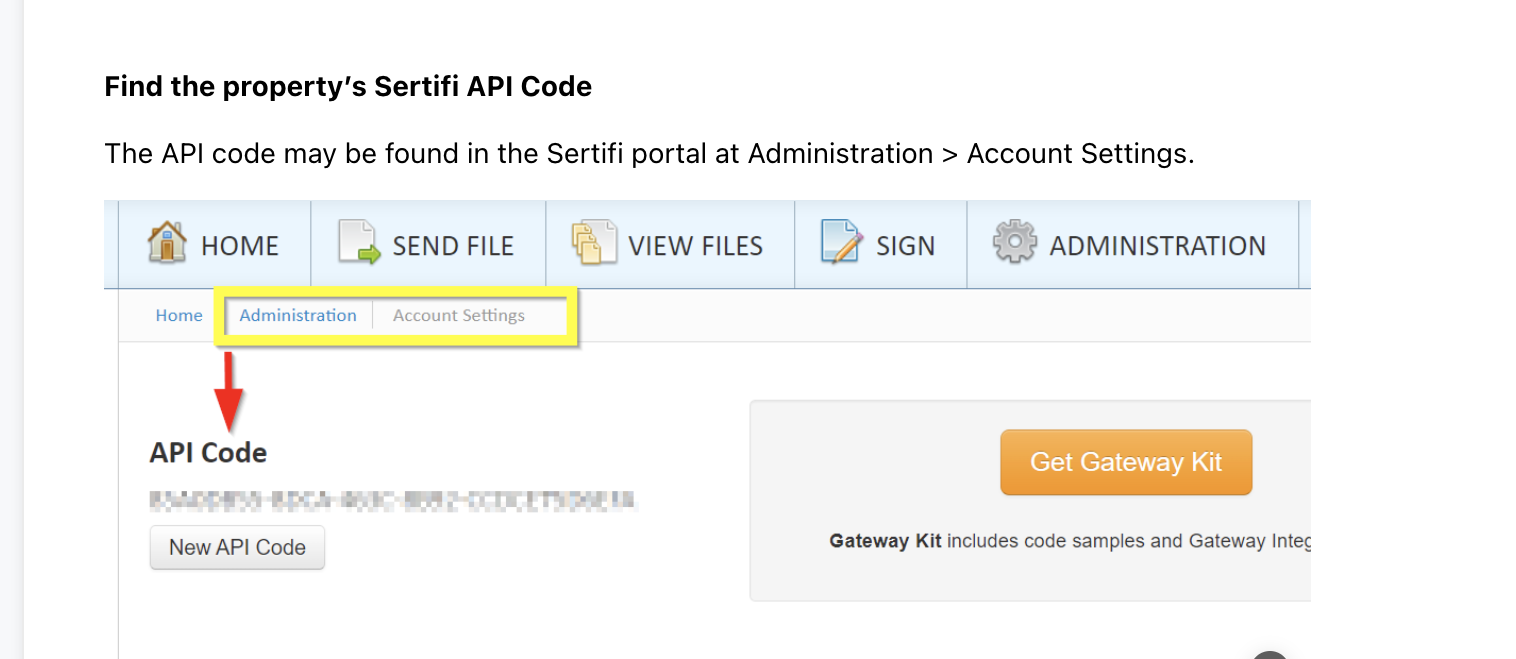
Copy the API Code.
Log into STS Cloud
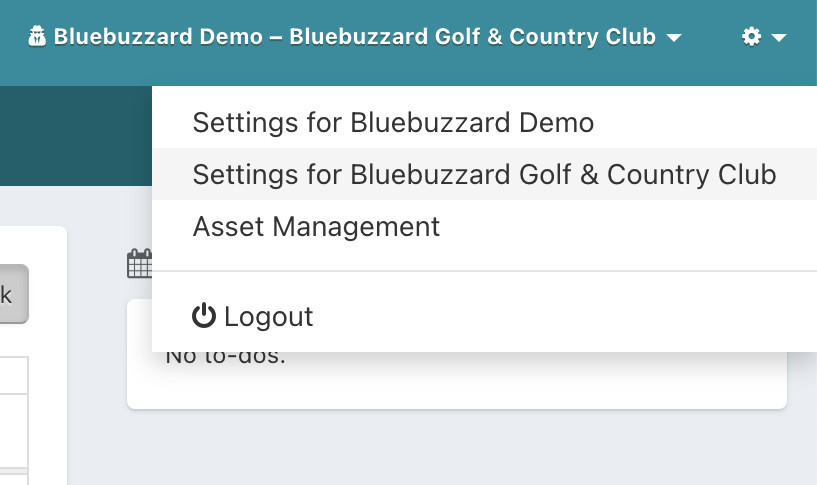
Click on the gear icon in the top right corner
Choose the property settings (second one down)
Click on the General Settings on left
Paste the API code into the bottom field that says 'Sertifi api key'

Click the green Update button to Save
For For multi-property accounts, you will need to copy the API Key from each property into the system
Click Settings for the database (utility wheel in top right)
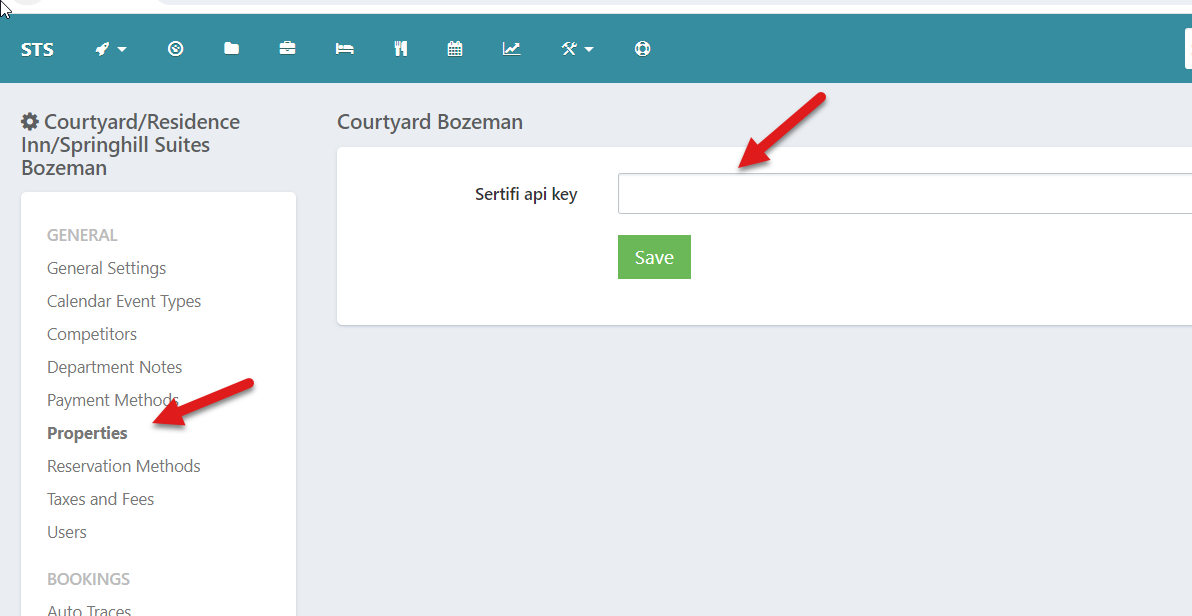
On the left in Settings, click Properties
Open the first hotel
Paste the Sertifi Key into the hotel in the Sertifi API Key field
Hit Save
Repeat for each hotel in the database