Planner Dashboard
The planner dashboard eliminates the need to download and save contracts/documents, allowing you to send a single link to clients that includes all necessary documents. This link opens a standard dashboard page where clients can access their documents from any device and share the link with others involved in the event. The included documents feature an Open PDF button for access, and those using the E-Signature module can sign documents electronically.
Get started:
1. Create a booking via normal procedures that block rooms, meeting spaces and menus to build out your BEO.
2. Once you have completed your booking, select the contract template for the group and verify your BEO presentation in the Agreements/Documents tab.
3. Check the box next to each document you'd like to share with your client via the new Planner Dashboard column. (You can also include a link to your proposal (for clients utilizing our ProposalPath module.)
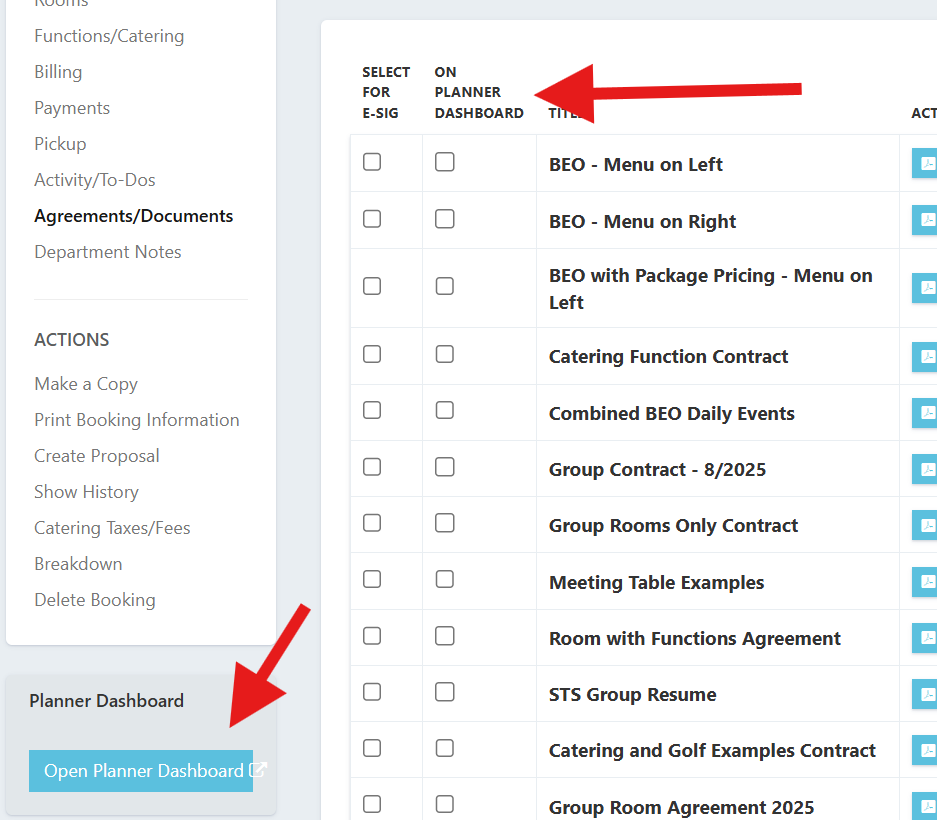
4. Click the 'Open Planner Dashboard' button on the left.
5. Once clicked, the planner dashboard page will open. Look at the purple box.
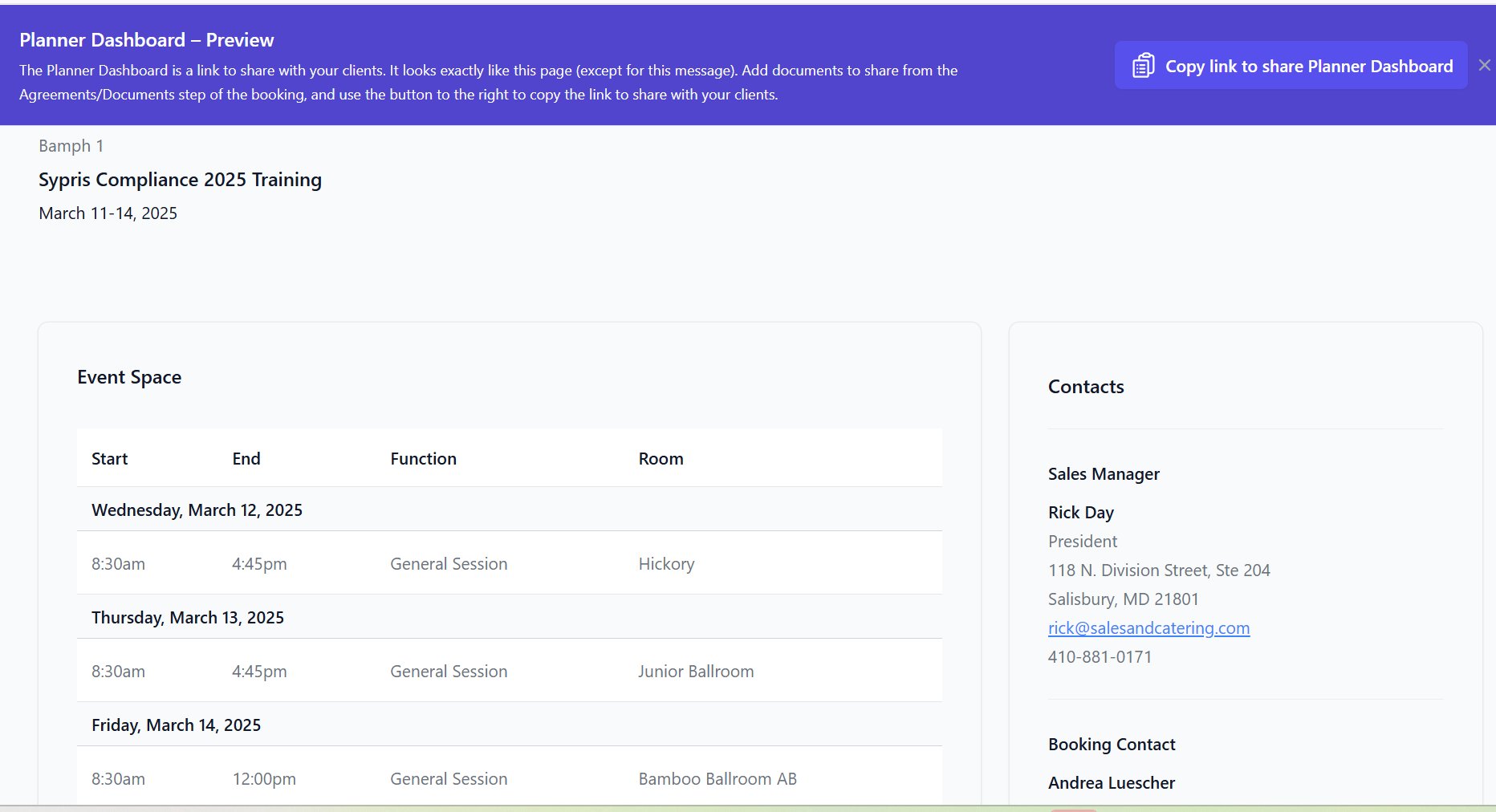
6. Click the Copy link to share Planner Dashboard button with your client.
7. Open your email and input your email note to the client and paste the link into the body of your email.
8. When your client clicks the link provided, they will be able view the Dashboard page and access the documents provided in the link.
NOTE: For clients using our E-signature tool, a notation will indicate the status in the e-signing process.
NOTE: If meeting spaces are blocked for the event, a summary of events will also appear.
NOTE: If you are using the Visrez Table Diagramming tool, and have this interfaced, a thumbnail of the diagram will also be included in the event summary allowing your client to view their space diagram.