Creating Your Master Menu Categories and Items
CREATE MENU CATEGORIES FIRST, THEN ADD YOUR MENU ITEMS
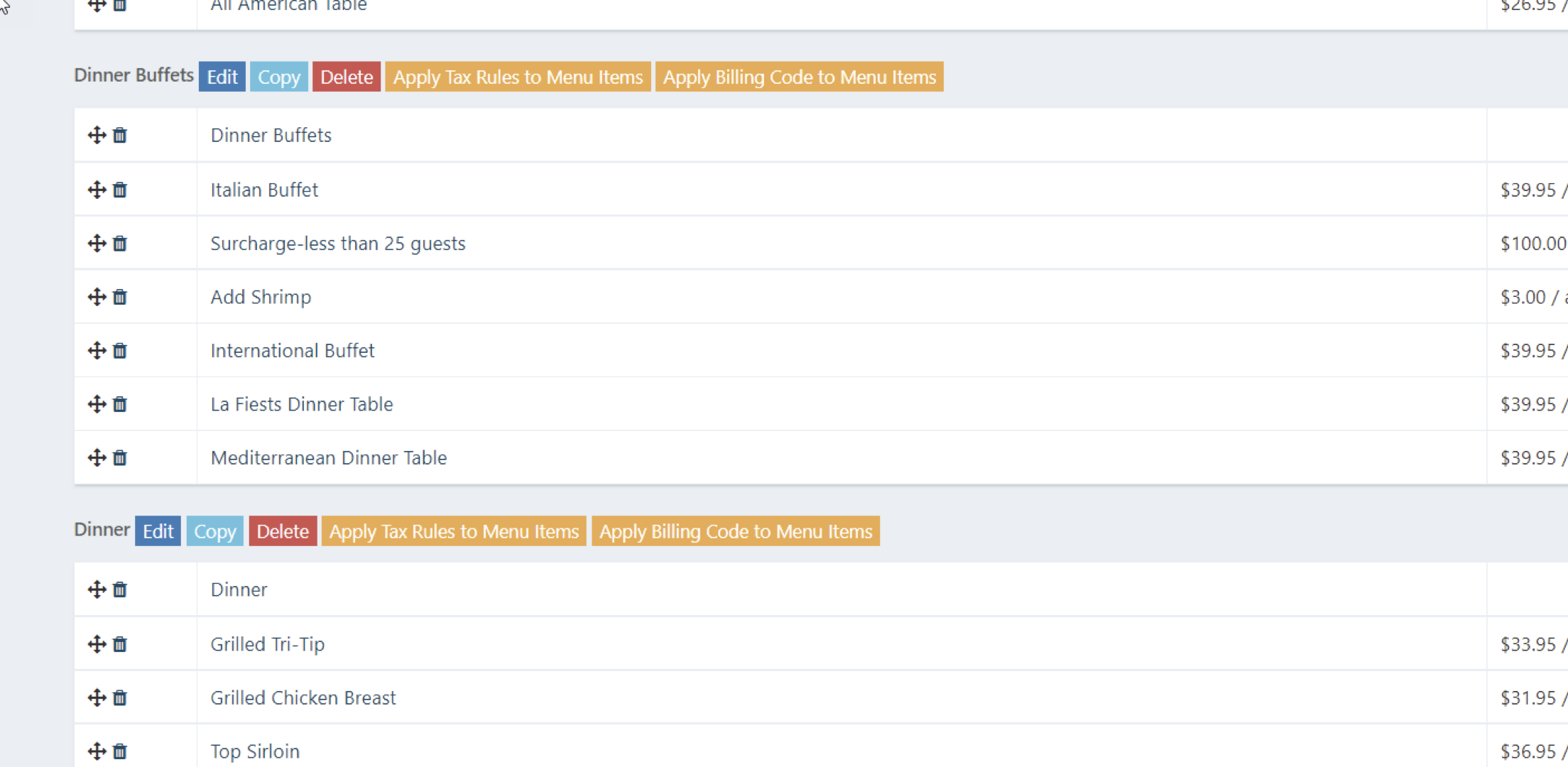
A Menu Category is simply a section, or a way you want to store and look up items. Breakfast, as an example can be a category, and then you can add your plated breakfast menus and your breakfast buffet menus to that category. Some client have a Category called Breakfast Plated, and they load the plated menus in that category, and have a Breakfast Buffet category, and load the buffet menus in that category to find them. See below:
Category: Breakfast
Items in a category:
All American Breakfast Buffet
Sunrise Plated Breakfast
Executive Continental Buffet
Category: Breaks
Menu items in the category:
Morning Healthy Start Break
Assorted Bagels with Cream Cheese
Cookie Platter per dozen
Category: Audio Visual
Items in Category:
LCD Projector
Flip Chart with Markers
8 x 10 screen
Lavalier Microphone
ADDING MENU CATEGORIES TO THE SYSTEM
To add menus, you will first create a Category (how you want to sort your menus) ie. - Breakfast , AV, Lunch etc.
Once you make the categories, then you will add menu items to the system.
To Create Menu Categories:
Click Utility Wheel in top right next to your name
Click Settings for the hotel
Scroll down to the bottom on the left and click Menu Items
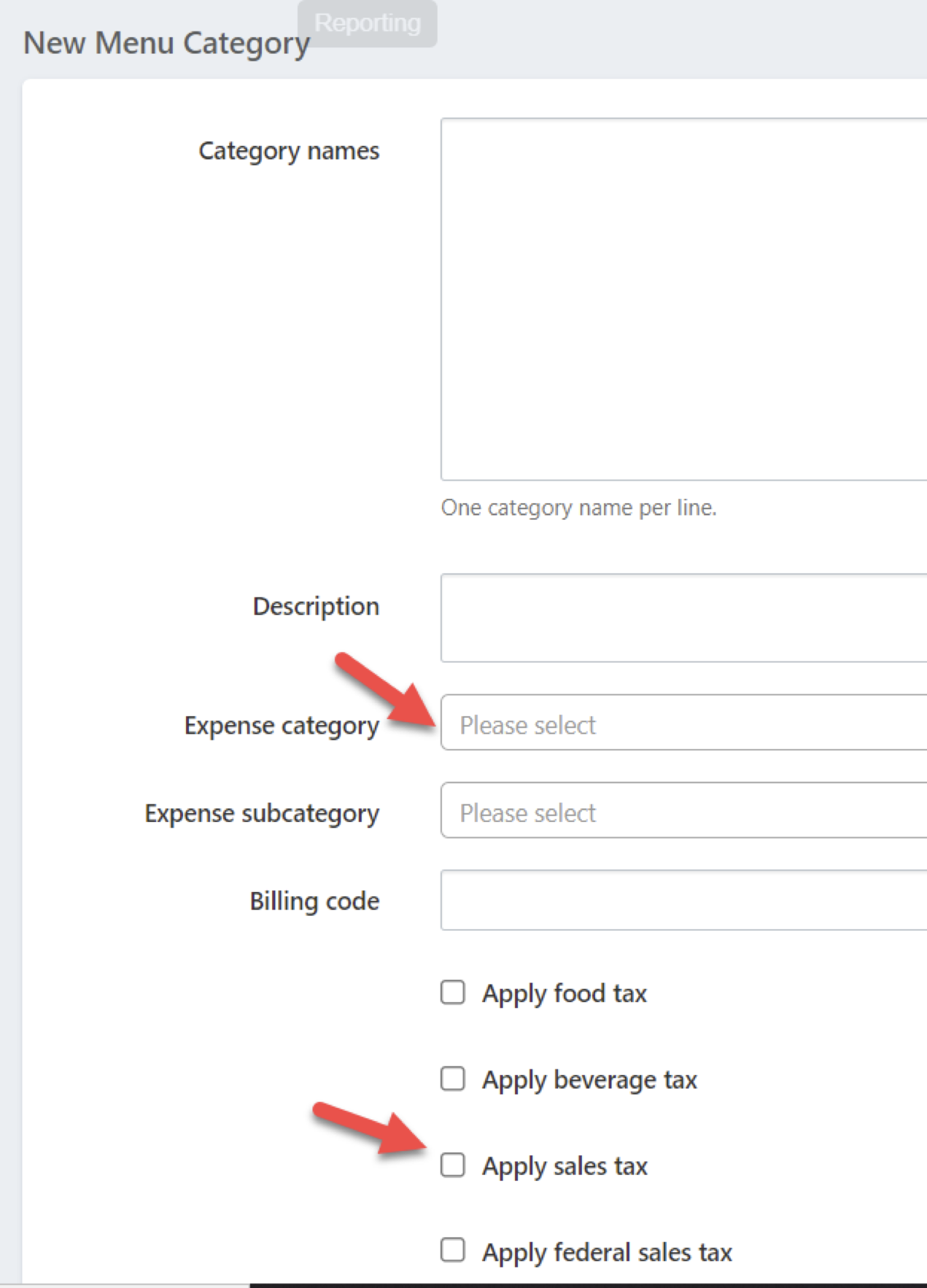
Click the blue Add Menu Category button
Enter the Category Name
Select an Expense Category - required
Check the Service Charge and Sales Tax boxes that will apply to all menu items in this category
Save
Repeat to setup your categories.
ADDING MENU ITEMS
Once Categories are setup, you can now add your menu items to a category.
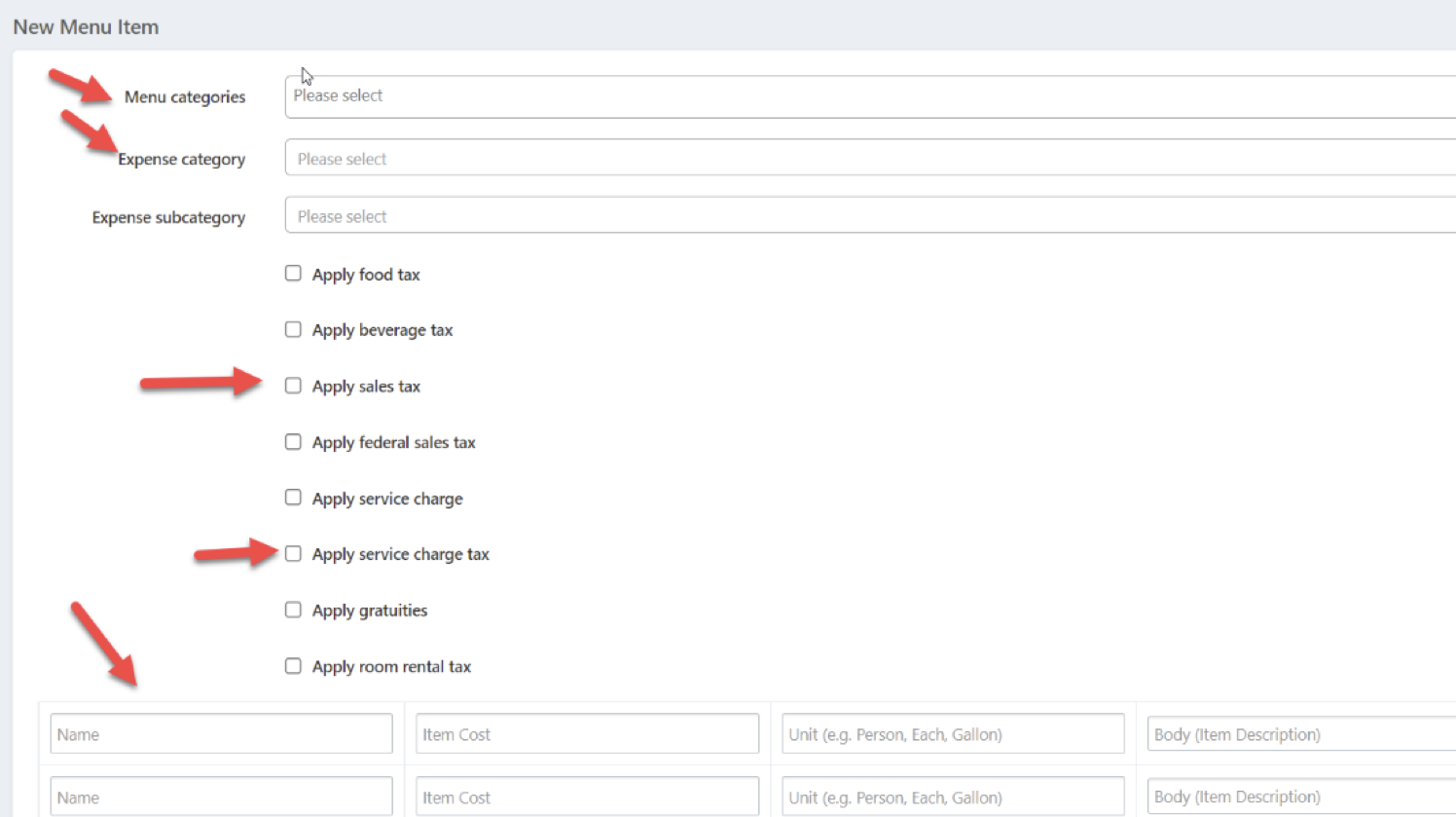
Click New Menu Items
Select the Category to put the new items in
Select the Expense Category
Select the tax and service charge to apply to the menu items.
Enter an Item Name, the price (no $), the Unit (person, day dozen, etc.) and either type the Body description of the item (or you can copy and paste the description into this spot from a document)
Enter the items you want in the selected category, up to 20 on the page
Scroll down and click save
Once menus are loaded, you will be able to see them in your Functions/Catering area of the bookings.
Below shows some sample of menu categories and items in the category: