Deleting Traces
LOST OR CANCELLED STATUS CHANGE AND DELETING RELATED TRACES/FUTURE TO DO’S
When changing a group status to Lost or Cancelled, please note the following to document the lost business reason with related notes, and also to remove any related booking traces from your calendar due to the group cancellation.
The Auto Traces set up in your database for your bookings will initially create the traces for the key service dates of your bookings based on the group status selected. Once a group cancels, you can also remove the group’s activities from your future to do’s.
If the group was to re-book for another date, then traces relating to the group’s new dates will populate when you copy and create the booking for the re-scheduled dates.
When the group cancels their booking:
Open the booking to update
Change the Group Status to Lost or Cancelled as appropriate
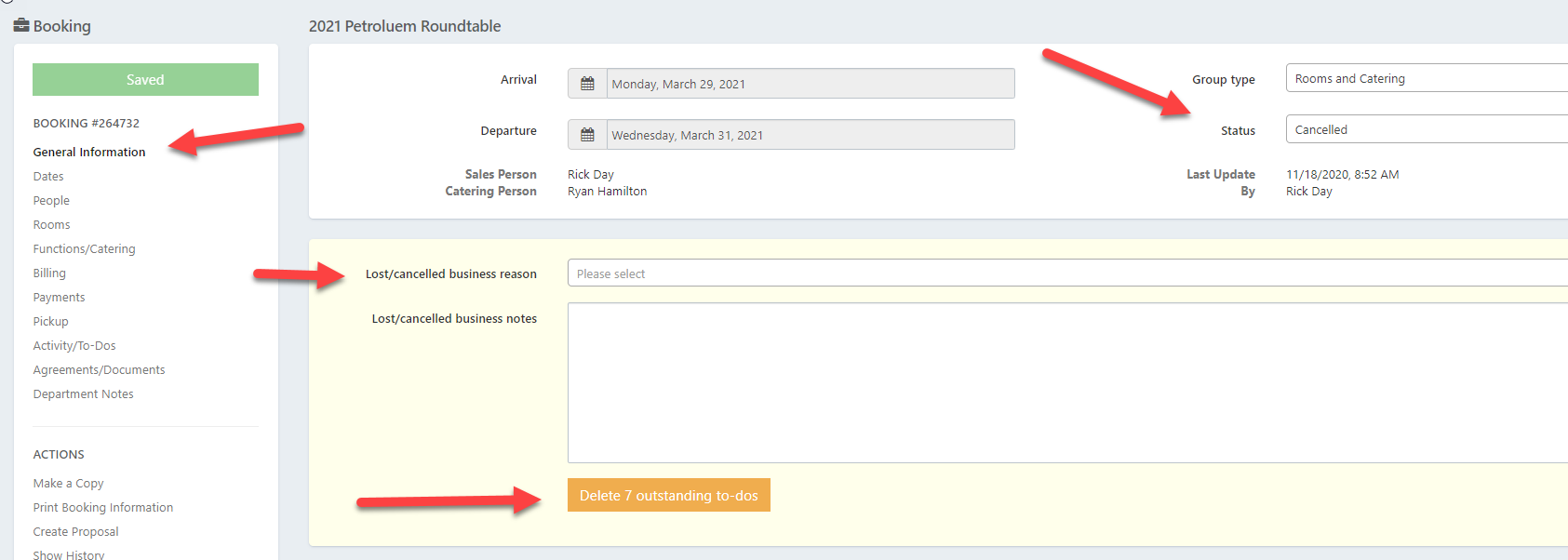
Click the General Information Tab on the left
In the yellow box, select your Lost Business Reason and add any notes
Click the Orange button to delete the related future activities from your calendar
Click Save on the right
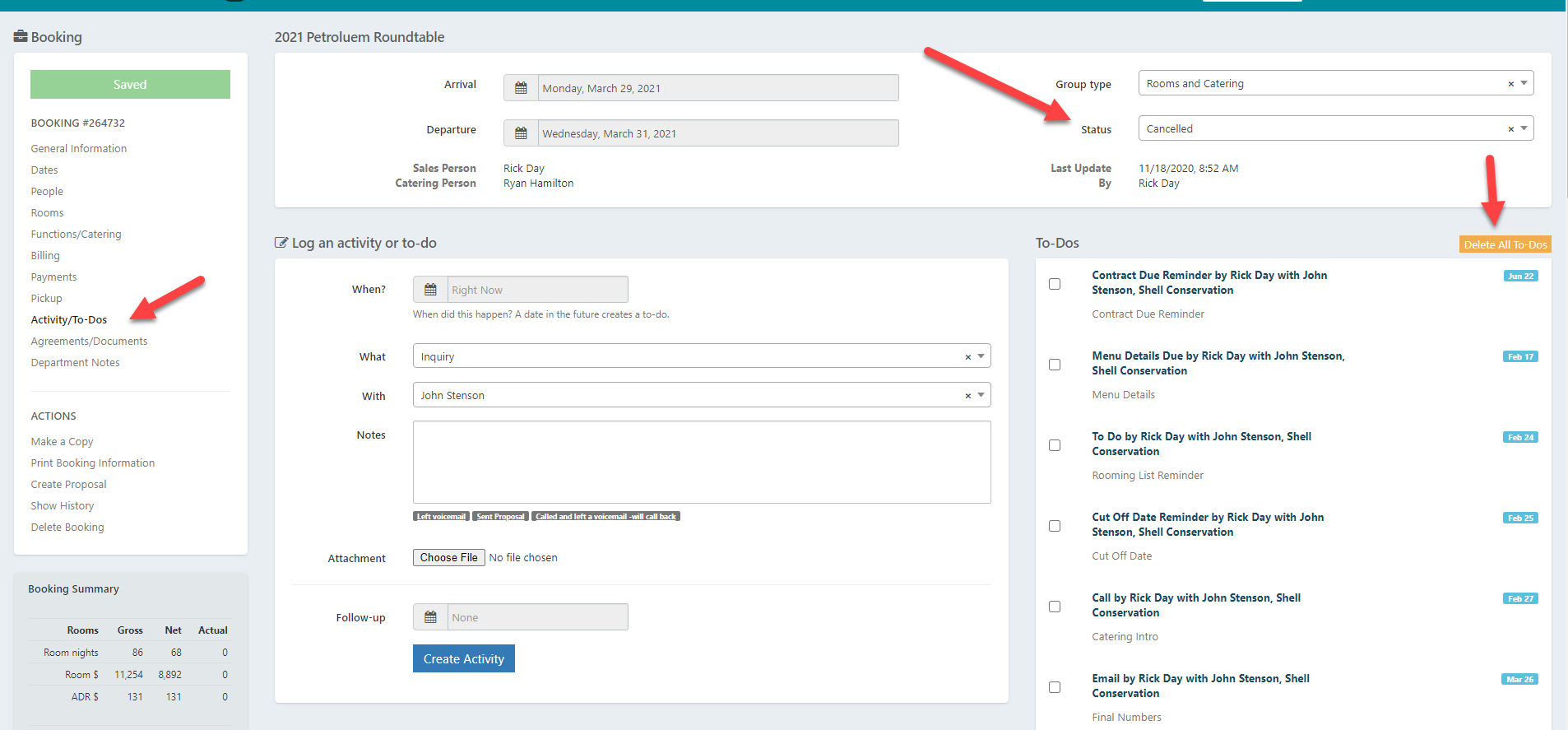
To delete future to do’s from a booking if previously cancelled and a lost business reason was recorded (applies to cancelled bookings prior to 11/17/2020):
Open the Booking you want to update
Click the Activity/To Do tab on the right
Click the Orange Delete All To-Do’s button on the left
Click Save
This will remove the cancelled booking’s future reminders from your calendar that are no longer active due to the cancellation.