Adding a Credit Card Processing Fee to Catering Expenses
You can now add a credit card processing fee to catering expenses in STS Cloud. This feature gives your team a simple way to apply a processing fee at the booking level and display it clearly on the banquet check.
Before you begin
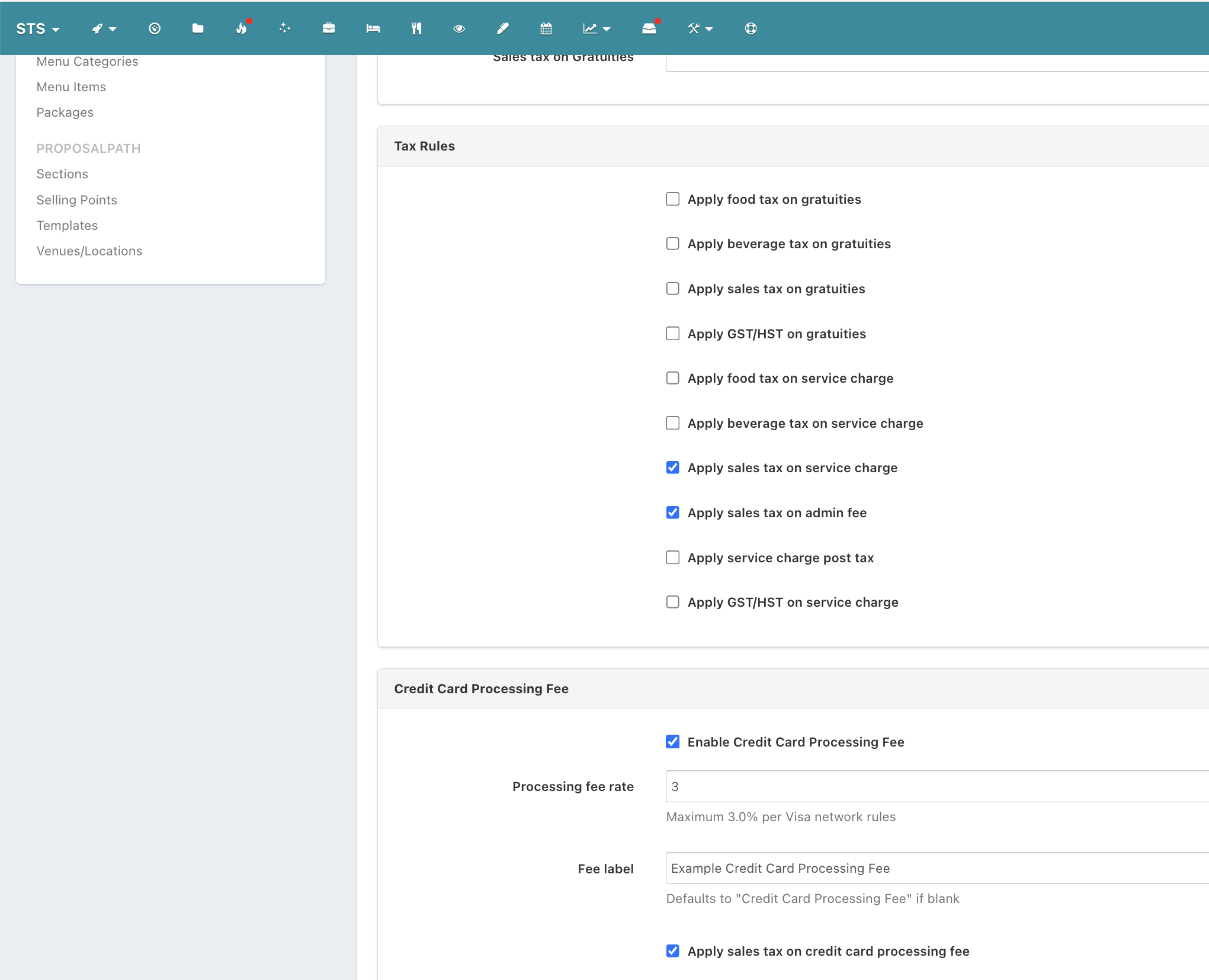
Before using this feature, make sure the credit card processing fee has been enabled in your account settings. You’ll also want to confirm whether the fee should be subject to sales tax based on your state requirements.
Set up the credit card processing fee
To enable the feature:
Go into the Property Settings for the account
Select Taxes & Fees
Scroll down and enable the credit card processing fee option
Enter the fee rate
Add the label you want displayed
Turn on Sales tax if required in your state
Apply the fee to a booking
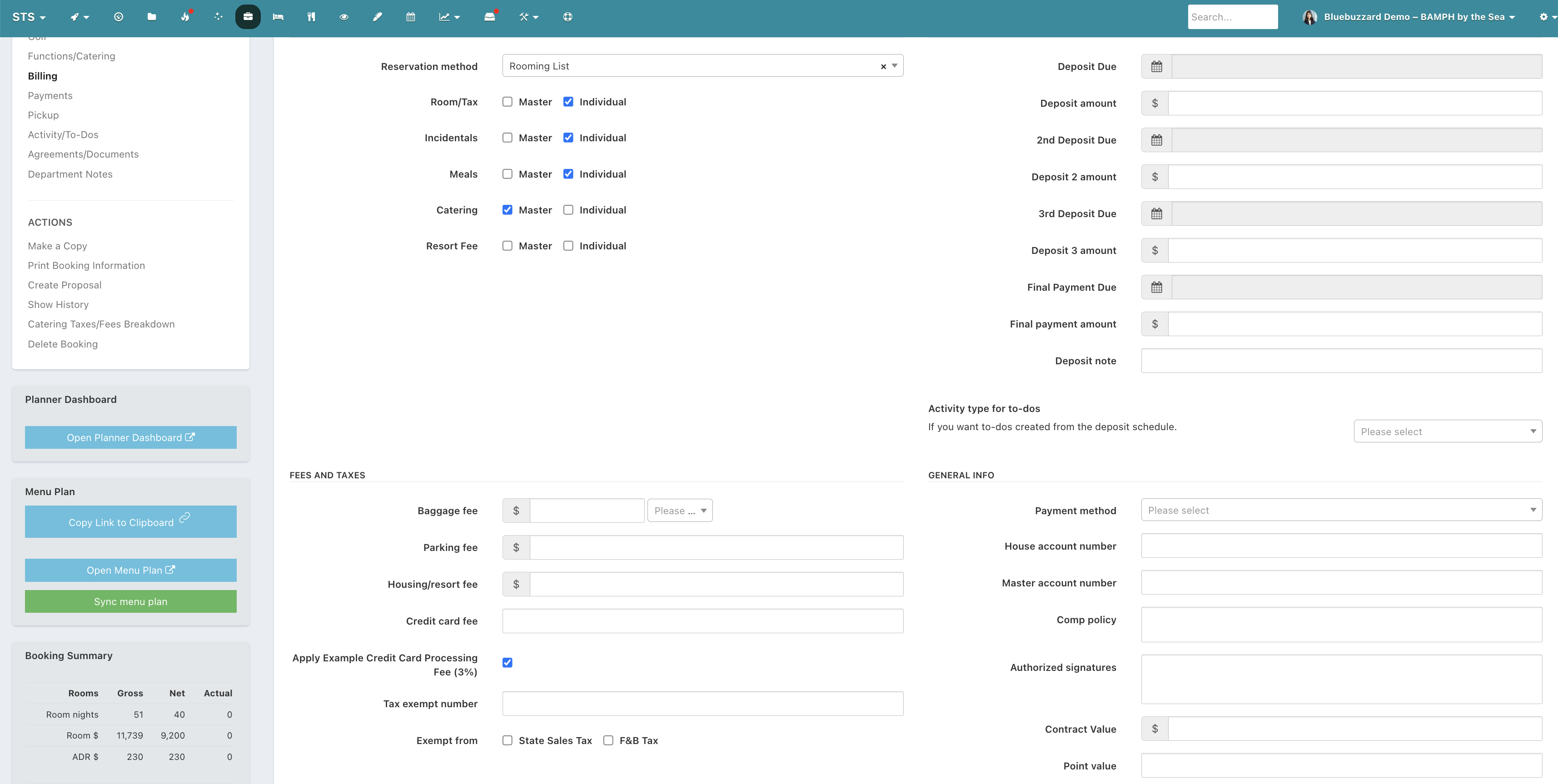
After setup is complete, you can apply the fee on individual bookings:
Open the booking
Go to the Billing tab
Check Apply credit card processing fee
Where the fee appears
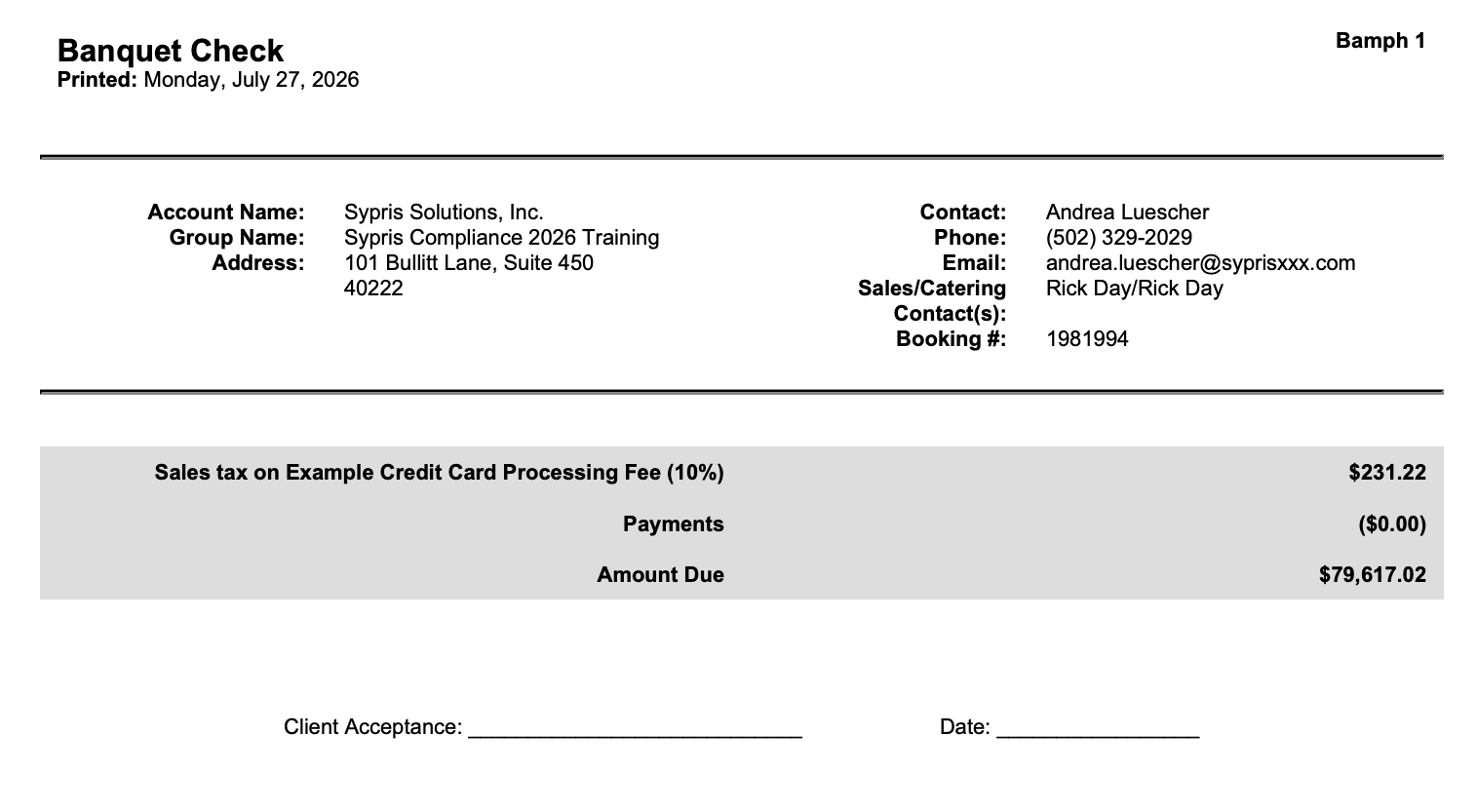
When applied, the credit card processing fee appears on the banquet check at the bottom of the grand total. This fee does not appear on the BEO.
FAQ's
Does the credit card processing fee apply automatically to every booking?
No. The fee is applied per booking by checking Apply credit card processing fee in the Billing tab.
Can I customize the fee?
Yes. You can set the fee rate and choose the label that appears.
Can sales tax be applied to the fee?
Yes. You can enable sales tax for the fee if that is required in your state.
Where will my client see the fee?
The fee appears on the banquet check at the bottom of the grand total.
Does the fee appear on the BEO?
No. The fee does not appear on the BEO.